Customizing the View
FMS Explorer provides flexibility in the arrangement of open controls within the workspace screen, to help customize how you view your measurement data. You can open controls through the Controls menu ribbon, and customize viewing options through the control tabs and headers, in addition to options (e.g. decimal precision) offered on the context menus of individual controls.
Note: Keep controls sized appropriately to the amount of information you intend to view. FMS Explorer screens can convey large quantities of data, and several controls and screens can be open simultaneously. Depending on your data viewing needs, this requires care when sizing screen components, particularly in the horizontal dimension.
See Using the File Menu for more information about managing workspace files.
See CygNet Measurement Workflow for more information about common workflow elements you may wish to consider when setting up screens.
Accessing the Controls Menu
In FMS Explorer, CygNet Measurement controls can be accessed from the Controls menu. Menu tabs and their button positions are fixed, but individual control positions can be customized.
Click the Controls tab to access the Controls menu, to create or select controls to view on your screen. You can create a maximum of 8 controls of each type. See Using the Controls Menu for more information.
Opening Controls
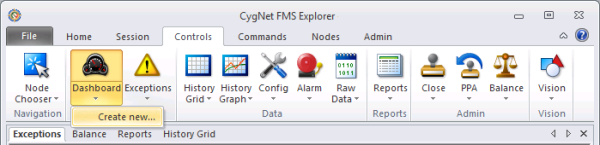
If there are no open controls of the desired type yet, click the icon of the desired control to open one.
If there are open controls of the desired type already, click the icon to shift focus to the first instance of the control. Alternatively, click the arrow below the selected control icon to either select an existing control window or create a new one.
Control tabs appear below the menu ribbon, in the data pane header, for each open control. By default, the stand-alone Node Chooser will be docked to the left side of the screen, and all other controls will be tabbed in the main data pane. Any of these can be changed to construct and organize your screen environment as desired.
|
Control Tabs |
Using Control Tabs and Headers
Once controls are open, tabbed controls can be accessed from the default control tabs within the data pane. Docked controls can be accessed from the control header. Open controls can be renamed and repositioned. The relative position of an open control can be changed by dragging or docking it, or by floating or hiding a docked control. You can also close the control from the tab.
Renaming Controls
An open control can be renamed as part of customizing the workspace, whether the control is tabbed, docked, or floating. Right-click on a control tab or header to access its context menu options.
|
Renaming Controls |
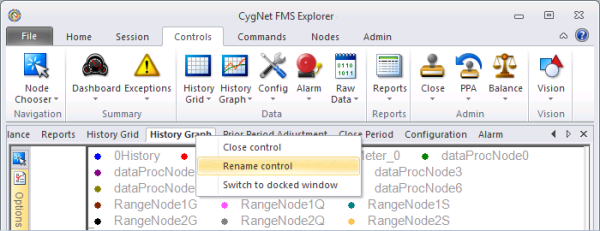
Click Rename control to access the Rename Control dialog box.
|
Renaming Controls |
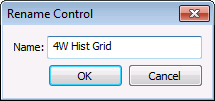
Type a name of your choice into the text box. Maximum allowable character count is 25, and the entry must have content (it cannot be empty or all spaces). Click OK to save the new name. This name will now appear on the control, and in the control button drop-down menu.

Dragging Controls
Once multiple controls are open, you have the option to drag open control tabs to reposition them. You can drag a tab laterally to a new position within the sequence of tabs in the pane, or you can drag it to the right edge of an existing pane to create a new pane. This feature is helpful for subdividing the screen horizontally with panes containing either single or multiple controls.
When you hover over the tab of a currently viewed control you wish to reposition, or when you click the tab of another open control, the tab becomes orange to help in positioning. To reposition a control tab within the sequence, drag and drop to the desired location. To reposition a control by creating a new pane, drag the control to the edge of an existing pane. When you hover over the potential new pane position, a cross-hatched border outline appears indicating the new pane location. By default, new panes appear to the right of a selected pane and are half the size of the adjacent pane. Once positioned, resize each pane to suit your workspace. In this manner, you can subdivide the pane horizontally as much as you wish, with each section housing one or more controls.
|
Dragging Controls |
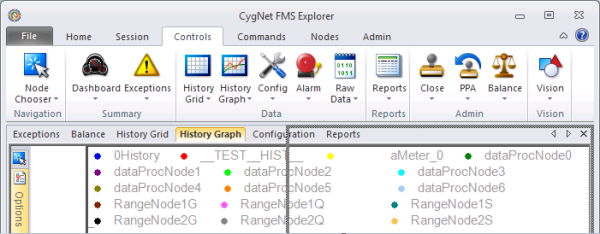
Once multiple panes are established, tabbed controls can be dragged between panes. Click the control tab and drag it to the header of the desired pane, then adjust the tab order as desired.
Docking Controls
Once controls are open, you also have the option to dock an open control to a new position within the screen, thereby viewing multiple controls simultaneously. This feature is helpful for subdividing the screen with a single control, either horizontally or vertically.
Right-click on a control tab to access its context menu options.
|
Docking Controls |
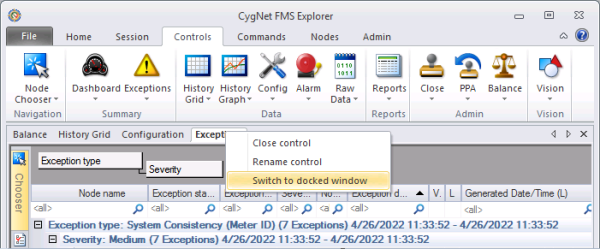
Click Switch to docked window to enable the docking options. By default the window will dock in the left corner. Click the control header to drag it into position. When selected, the header on the control becomes orange to help in positioning. Drag and drop to the desired location.
|
Docking Controls |
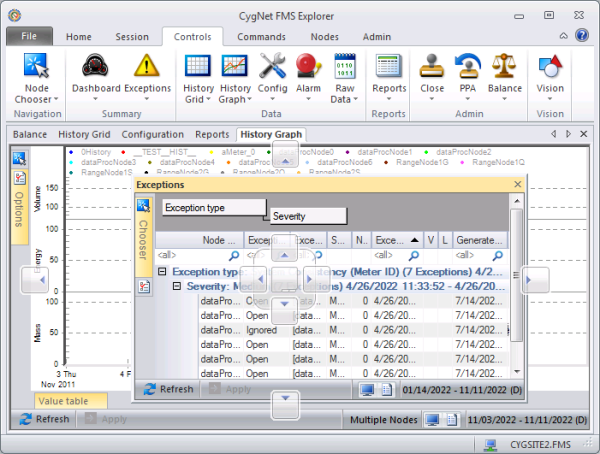
Positional indicators appear to guide you in docking the control. There is a central icon grouping and a perimeter icon set. Use the central icon grouping to dock a control to any edge of the FMS Explorer data window (directional arrows indicate position), or back to the file tabs toolbar (central position file icon). Use the perimeter icon set to dock the control to any edge of the available screen.
When you hover over a potential docking position, both the selected icon and a preview location area appear shaded to help you locate the control. Release the control to the desired position. Resize controls as necessary by dragging the edges of the panes to maximize the efficiency of your screen space.
|
Docking Controls |
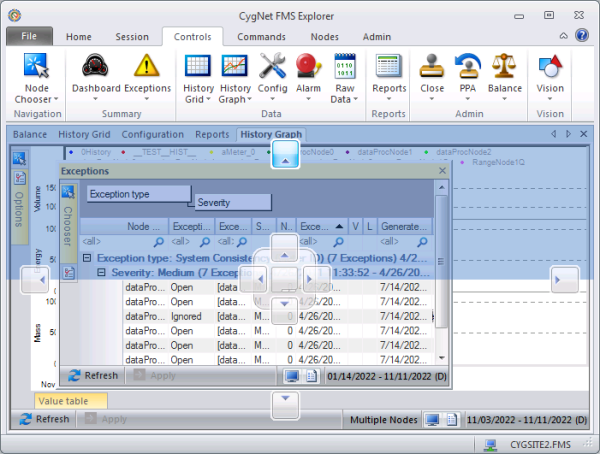
Continue docking and positioning controls as described above until the screen is customized for your data viewing requirements. These procedures can also be used across multiple screens. See Customizing the View Using Multiple Monitors for more information.
Floating Docked Controls
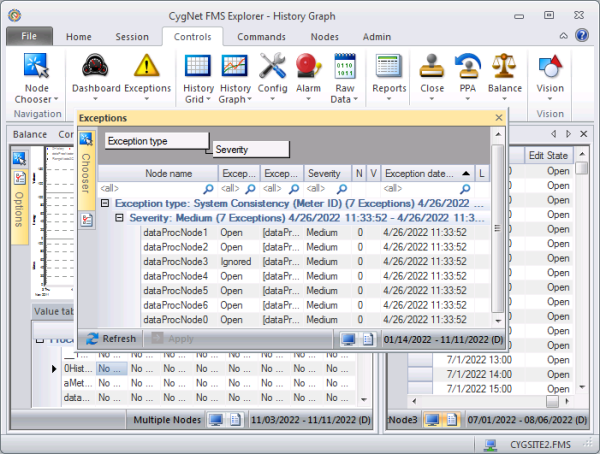
Docked controls can be "floated" to view and work on them in a larger context, to help organize the screen, or to place the control on a screen beyond the application window. Click the control header and drag the control to a desired central location in front of the other controls. When you are done, drag it back to the previous docked location, or resize it and keep it floating in a desired location.
|
Floating Docked Controls |
Hiding Docked Controls
Docked controls can optionally be pinned to an edge of the screen, using the Auto Hide option. The Options and Chooser panes embedded in the controls can also be pinned to the left edge of the control where they appear, using the Auto Hide option. This offers you greater flexibility in controlling how you view data on your screen.
To hide a docked control (the History Graph control in the example below), click the vertical pin icon  in the control header. In this example the Options pane has already been hidden to provide more viewing area for data.
|
Hiding Docked Controls |
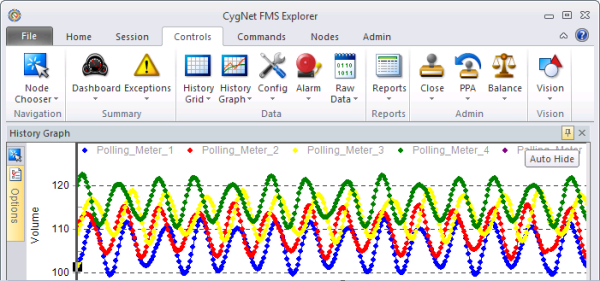
The hidden control (the History Graph control in the example below) will appear as an orange tab, against a screen edge, depending on the control location.
|
Hiding Docked Controls |
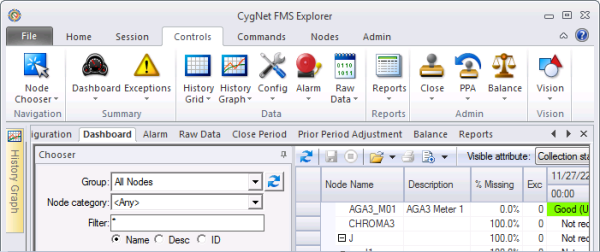
To display a hidden docked control again, hover over the docked control tab to temporarily reveal the control, or click to display it, and then click the horizontal pin icon  in the control header.
|
Hiding Docked Controls |
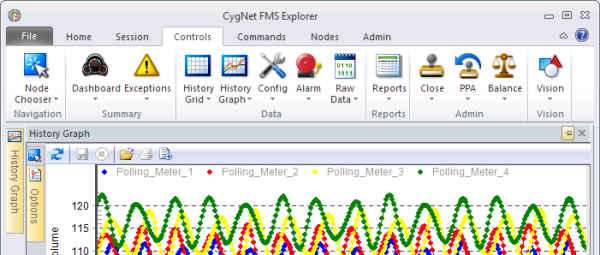
Closing Controls
Once a control is open, you have the following options to close it.
- For a tabbed, docked, or floating control, click X on the right corner of the control header.
- For a tabbed control, right-click on the control tab to access its context menu options. Click Close control.
More:
 Customizing the View Using Multiple Monitors

